I have an iPad 2 (512 MB DDR2 RAM, 16 GB flash memory) that I use primarily for reading e-books and playing music, while our newer iPad and iPhones are used for more modern and processor-intensive applications. The iPad 2 was released in March 2011 (more than 8 years ago) and was discontinued in March 2014. For many years, I had assumed that it would be forever stuck on iOS 9.3.5 which was released in August 2016. To my surprise, I discovered that Apple released iOS 9.3.6 in July 2019, nearly 3 years after iOS 9.3.5.
According to a Apple Support document, this update was released “to make sure that its GPS, date, and time continue to work properly” and applies to iOS 9 and 10. It goes on to say “This is due to the GPS time rollover issue that began affecting GPS-enabled products from other manufacturers on April 6, 2019. Affected Apple devices are not impacted until November 3, 2019.”
I’m pleased that Apple has decided to support these legacy operating systems. It’s one of the reasons why I enjoy being a part of the Apple ecosystem. The fact that I can still use an 8-year old iPad (and a 12-year old mid-2007 24-inch iMac) is testimony to the total cost of ownership and the value of these products.
Showing posts with label Update. Show all posts
Sunday, September 8, 2019
Thursday, July 4, 2019
Windows 10 Update Fail and Reinstalling Office 365
For work, I run Windows 10 in a Parallels Desktop virtual machine. Today my Windows Update informed me that a cumulative update for Windows 10 from version 1809 (a.k.a. October 2018) to version 1903 (a.k.a. May 2019). Given that I've been experiencing performance issues, I was hoping that this update would fix those problems and gladly chose to install it. Everything appeared to go smoothly, and I was prompted to restart my machine. However, after a successful restart, I was notified that the update failed to install.
I'm not sure if it's related, but I found a Forbes article about how Microsoft has blocked Windows 10 updates for some Mac users, as well as a Windows Support article addressing the same issue. Neither of them specifically apply to Windows 10 updates on Parallels Desktop, but I wonder if the same underlying issue applies. In any case, I decided to wait for Microsoft to address its underlying issues and wait for the next update.
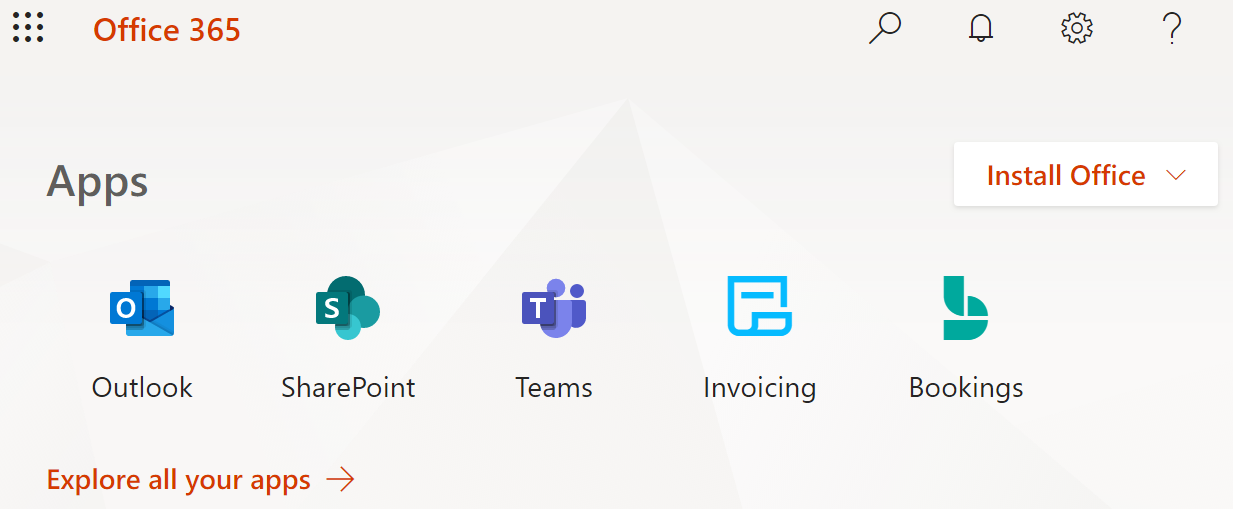
Shortly thereafter, I noticed that all of my Office 365 Business applications were missing: Outlook, Word, Excel, PowerPoint, etc. I assume that there were updates to those applications as part of version 1903, but since the update failed, I was left without any of those apps. Fortunately, I was able to easily re-install those apps without requiring any CD/DVD installer or password/serial number combinations. If you have an Office 365 Business account, use the following steps:
- Login to Office at https://www.office.com/
- Click the "Install Office" button
From there, simply follow the instructions and in a few short minutes you should be back in business, both figuratively and literally. Hope this helps!
Saturday, February 23, 2019
Updates on macOS Mojave App Store
I have a MacBook Pro and iMac, both running macOS Mojave 10.14.3. Several days ago my MacBook Pro told me that I had an update waiting to be installed.
I dutifully updated my NordVPN application, and because I have the same application running on my iMac, I turned on the iMac, launched the App Store, and planned to update the app there too. However, the NordVPN update was nowhere to be found.

I could not find an option to check for updates or to refresh the App Store, so I waited several minutes to no avail. I tried quitting and re-launching the App Store, but still no success. It wasn't until the next day that the App Store on my iMac gave me the option to update my NordVPN application.
So this made me wonder if there is some sort of queueing protocol where not all users are given the option to update applications at the same time, perhaps to avoid server bandwidth issues? Anyone else see similar behavior on 2 separate Macs?
I dutifully updated my NordVPN application, and because I have the same application running on my iMac, I turned on the iMac, launched the App Store, and planned to update the app there too. However, the NordVPN update was nowhere to be found.

I could not find an option to check for updates or to refresh the App Store, so I waited several minutes to no avail. I tried quitting and re-launching the App Store, but still no success. It wasn't until the next day that the App Store on my iMac gave me the option to update my NordVPN application.
So this made me wonder if there is some sort of queueing protocol where not all users are given the option to update applications at the same time, perhaps to avoid server bandwidth issues? Anyone else see similar behavior on 2 separate Macs?
Sunday, July 8, 2018
How NOT to Update macOS (BONUS: How to Start Up in Safe Mode)
I perform routine maintenance on my parents' iMacs when I visit them. Yesterday I noticed that on one iMac running macOS High Sierra 10.13.4, an update to 10.13.5 had been downloaded and was waiting to be installed. In the "old days" of Mac OS X, it was often recommended to repair disk permissions before installing operating system updates or upgrading to a new operating system. That option appears to be no longer recommended nowadays, but I've still gotten into the habit of doing "spring cleaning" before updating an operating system. Since I was using CleanMyMac 3 to uninstall some old applications at the time, I decided to use the "Smart Cleanup" option to more thoroughly clean the iMac by deleting system junk, photo junk, iTunes junk, etc. Everything went fine, the iMac was as clean as a whistle, and I decided it was a good time to update the operating system.
When launching the App Store and electing to update the operating system, it immediately prompted me to restart the computer since it had previously downloaded the installer (possibly a month ago or more, based on its availability as of June 1, 2018). Having updated macOS many times before, I knew it could take a while to install, so I restarted and came back about an hour later to find a disturbing "macOS could not be installed on your computer" error. It went on to say something about being unable to locate a resource--I pressed command-shift-3 to take a screenshot, but I found out later that the screenshot was not saved (since the Finder was not running), so I don't remember the exact wording. I did successfully save the installer log, but it did not appear to have the same language as what I saw on the screen, which looked similar to, but possibly not exactly like, this screenshot (image grabbed from this site):

In any case, my only option at that point was to restart the computer. Restarting the iMac simply resulted in an infinite loop with the installer generating the "macOS could not be installed on your computer" error minutes later and then prompting me to restart. I noticed that the internet connection was down, so I was hoping that the installer was trying to download something and wasn't able to establish a connection to do so. I rebooted the router and got the internet connection working again, as verified on another device. Still no luck--rebooting kept resulting in the same error and providing no recourse but to restart.
I nearly crapped in my pants.
Did I brick the computer? Would I have to reinstall the operating system from a DVD or flash drive? Worse yet, would I have to service the iMac from a "professional" and drain half the money out of my savings account? Then I decided to reach into my bag of tricks by restarting in safe mode to see if I could bypass the macOS installer. This is done by holding the shift key while restarting. I was able to launch macOS 10.13.4 and get to the Finder. Bingo! From there, I opened the App Store and checked for updates. It said that a software update to 10.13.5 was available. Hooray! I clicked the "update" button and waited anxiously as it downloaded the 2.12 GB installer.

After restarting the machine, the macOS installer seemed to be working correctly, and a little less than an hour later, the machine rebooted into a working installation of macOS High Sierra 10.13.5.
Craptastrophe avoided.
Reflecting on this experience, I have 2 recommendations to share:
When launching the App Store and electing to update the operating system, it immediately prompted me to restart the computer since it had previously downloaded the installer (possibly a month ago or more, based on its availability as of June 1, 2018). Having updated macOS many times before, I knew it could take a while to install, so I restarted and came back about an hour later to find a disturbing "macOS could not be installed on your computer" error. It went on to say something about being unable to locate a resource--I pressed command-shift-3 to take a screenshot, but I found out later that the screenshot was not saved (since the Finder was not running), so I don't remember the exact wording. I did successfully save the installer log, but it did not appear to have the same language as what I saw on the screen, which looked similar to, but possibly not exactly like, this screenshot (image grabbed from this site):

In any case, my only option at that point was to restart the computer. Restarting the iMac simply resulted in an infinite loop with the installer generating the "macOS could not be installed on your computer" error minutes later and then prompting me to restart. I noticed that the internet connection was down, so I was hoping that the installer was trying to download something and wasn't able to establish a connection to do so. I rebooted the router and got the internet connection working again, as verified on another device. Still no luck--rebooting kept resulting in the same error and providing no recourse but to restart.
I nearly crapped in my pants.
Did I brick the computer? Would I have to reinstall the operating system from a DVD or flash drive? Worse yet, would I have to service the iMac from a "professional" and drain half the money out of my savings account? Then I decided to reach into my bag of tricks by restarting in safe mode to see if I could bypass the macOS installer. This is done by holding the shift key while restarting. I was able to launch macOS 10.13.4 and get to the Finder. Bingo! From there, I opened the App Store and checked for updates. It said that a software update to 10.13.5 was available. Hooray! I clicked the "update" button and waited anxiously as it downloaded the 2.12 GB installer.

After restarting the machine, the macOS installer seemed to be working correctly, and a little less than an hour later, the machine rebooted into a working installation of macOS High Sierra 10.13.5.
Craptastrophe avoided.
Reflecting on this experience, I have 2 recommendations to share:
- Install OS updates as soon as possible after downloading them. Specifically, in this case I wonder if cleaning up "system junk" with Clean My Mac might have stripped away resources from the mac OS installer which prevented the installer from functioning properly. I can't say for sure that this was the problem, nor will I ever attempt to reproduce the issue, but that's my best guess as to why the macOS installer failed. Downloading and immediately installing a macOS update is probably a safer thing to do in general.
- Learn how to start up your Mac in safe mode. It could save your skin, as it did mine. Even if you can't completely resolve the issue in safe mode, the ability to launch the Finder will at least enable you to grab a copy of important files from your hard drive.
I hope you've benefited from this. Happy macOS updating!
Thursday, August 3, 2017
Update Confusion - macOS Sierra 10.12.6
On 7/28/2017, I updated my 15-inch 2016 MacBook Pro from macOS Sierra 10.12.5 to 10.12.6. Upon rebooting to complete installation, the App Store app told me that I still had 1 update available. Upon launching the App Store app, that 1 update was for macOS Sierra 10.12.6, despite me having just installed 10.12.6. Here's proof:

So instead of re-installing the 10.12.6 update, I rebooted my machine, thinking that it was mistakenly prompting me to re-install the operating system. Upon reboot, it told me again that I still had 1 update for 10.12.6, so I re-installed the 10.12.6 update. After the 2nd installation and rebooting, it STILL told me that I had a 10.12.6 update available. So at that time, I just ignored the prompting. A few days and a couple of restarts later, my MacBook Pro is no longer prompting me to update to 10.12.6. Couldn't it have gotten things right the first time?

So instead of re-installing the 10.12.6 update, I rebooted my machine, thinking that it was mistakenly prompting me to re-install the operating system. Upon reboot, it told me again that I still had 1 update for 10.12.6, so I re-installed the 10.12.6 update. After the 2nd installation and rebooting, it STILL told me that I had a 10.12.6 update available. So at that time, I just ignored the prompting. A few days and a couple of restarts later, my MacBook Pro is no longer prompting me to update to 10.12.6. Couldn't it have gotten things right the first time?
Subscribe to:
Posts (Atom)